NOW AVAILABLE · MY CONDUCTOR
Tap on.
Keep your ride
in view.
Meet Clipper Tag Tracker. See where you tagged on and follow your trip, right from your Lock Screen or Apple Watch.
See how it worksAvailable now in Caltrain Companion.
Requires a My Conductor annual subscription.

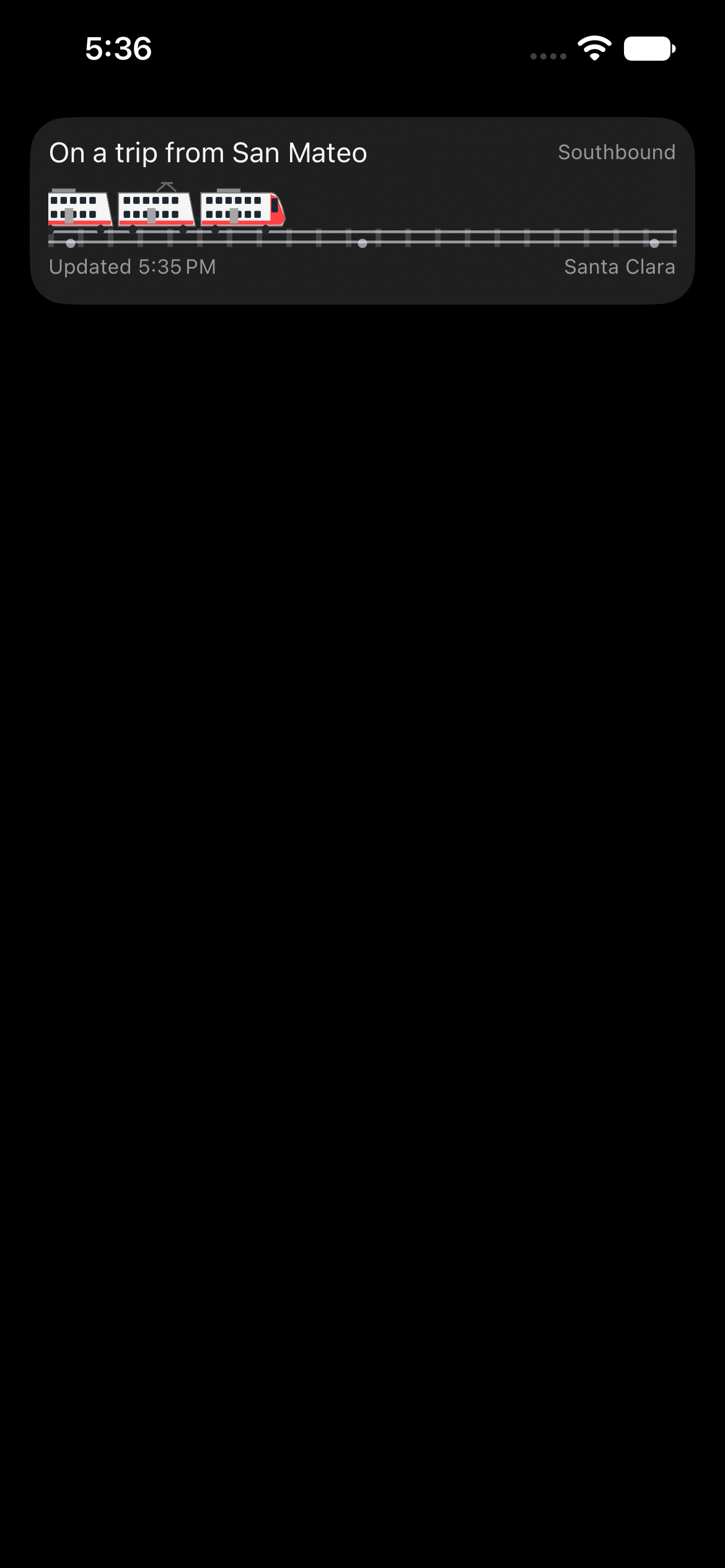
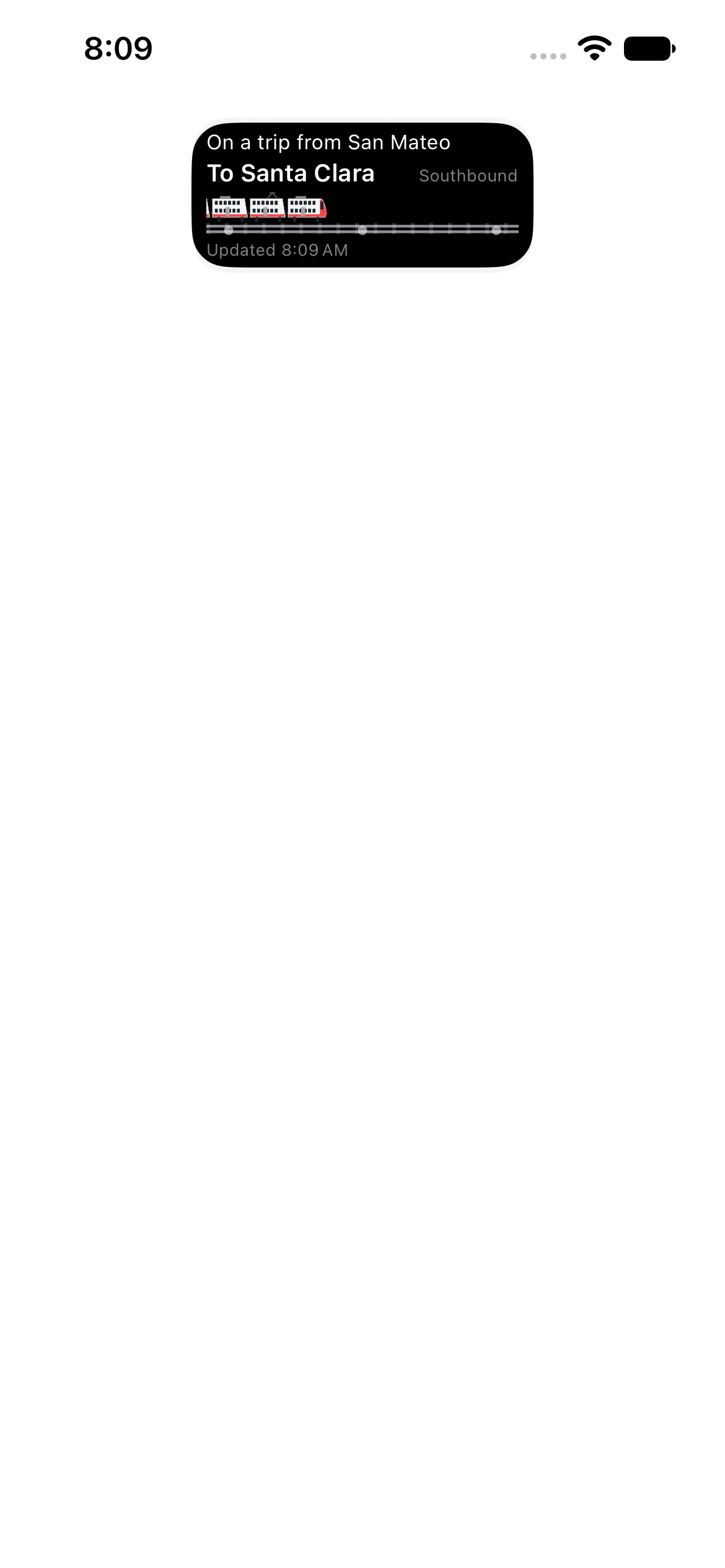
Screenshots of the app’s Live Activity views in illustrative device previews. Sample trip shown.
MONTHLY PASS UPDATE · JANUARY 1, 2027
Did you remember
to tag on?
Starting , Caltrain monthly pass holders must tag on and off for every ride.
With Caltrain Companion’s Clipper Tag Tracker, your recorded tag status is right on your Lock Screen or Apple Watch. Take a glance and ride with one less thing on your mind.
Read Caltrain’s monthly pass updateYour tag, remembered.
Check your tag-on station and status without opening the app.
Your trip, in motion.
See your direction and a little Caltrain moving along your route as location updates arrive.
A glance at your wrist.
The compact Live Activity keeps your trip close in the Apple Watch Smart Stack.
FROM THE PLATFORM TO YOUR STOP
From “Tagged on”
to “On a trip.”
Start with your tag-on station. Once the app detects you’ve left, the Live Activity shows your trip direction and progress, with the time of the latest location update.
THE CONNECTION BEHIND THE TAP
Your Clipper card.
A shortcut.
Your companion.
You’ll need your Clipper card in Apple Wallet on your iPhone or Apple Watch. Shortcuts is an Apple app that comes with your iPhone. It’s the link that tells Caltrain Companion when you tap your iPhone or Apple Watch at a Clipper reader.
It takes a little setup first. The app’s guided wizard walks you through it.
Use the station reader as usual.

Your Wallet automation runs “Log Clipper Card Scan.”

At a saved station, the scan starts or ends your tag session.
A LITTLE SETUP. THEN YOU’RE OFF.
We’ll walk you
through it.
Start in My Conductor → Clipper Tag Tracker → Set Up Clipper Scans.
The wizard brings your stations, permissions, shortcut, and Live Activity preferences together.
Choose your tag stations.
Select the stations where you normally tag on and off. Allow location access so the app can tell a station tap from an onboard fare check.
Make it yours.
Choose whether to show a Live Activity and your trip position. Both start on by default; you can change them in the wizard.
Trip position needs Always Location permission and at least two saved stations.
Connect your Wallet tap.
Add the provided shortcut, or create a personal automation in Shortcuts. Choose the Transaction or Wallet trigger, select only your Clipper card, and add Caltrain Companion’s Log Clipper Card Scan action. If you tap with Apple Watch, choose the Clipper card on your Watch in the card picker.
Enable automatic running, or Run Immediately if offered. Turn off Show When Run and Notify When Run if those options appear, to avoid extra Shortcuts banners.
Finish, then test a real tap.
Complete the wizard to turn tracking on. Tag at a saved station and check your status and Scan Log. With Live Activities enabled, your tag session is ready for a glance.
GOOD TO KNOW
Before your
next ride.
What about tapping with Apple Watch?
When choosing which card triggers the shortcut, select the Clipper card on your Apple Watch. Tapping that card on your Watch then runs the automation and updates Caltrain Companion on your iPhone. You don’t need a separate Watch setup.
What happens when I tag off?
A scan at one of your saved tag stations normally ends the active session. Scans away from those stations leave your tag status unchanged. If the app can’t confidently interpret a scan, it asks you to confirm. While tagged on, the choices are Tag Off or Fare Check.
Does this replace Clipper or pay my fare?
No. Keep tagging your Clipper card at the reader as usual. Caltrain Companion keeps its own record of your tag status; it does not change your Clipper account or show an official fare-payment confirmation.
How is my location used?
A location check helps recognize scans at your saved stations. Optional trip position uses background location while tracking an active trip. Clipper location processing stays on your devices and is not sent to Caltrain Companion’s servers. Scan Log exports include the coordinates you choose to share.
NOW AVAILABLE IN MY CONDUCTOR
A little more
peace of mind.
Get Caltrain Companion and set up Clipper Tag Tracker before your next ride.

Caltrain Companion is free to download.
Clipper Tag Tracker requires a My Conductor annual subscription.